
Powerful Fix: IPTV Smarters Player Firestick Setup — Avoid Issues Fast (7 Steps)
This iptv smarters player firestick setup guide shows the safest install method, the best login option
(Xtream Codes), and the exact settings that reduce buffering, improve stability, and fix EPG problems on Fire TV.
Important: IPTV Smarters Player is a media player only. It does not provide TV channels or content.
Only use services and streams you’re authorized to access.
Only use services and streams you’re authorized to access.
IPTV Smarters Player Firestick Setup: Complete Installation & Setup Guide (Step-by-Step)
📑 Table of Contents
- What You’ll Need
- Step 1: Prepare Firestick for IPTV Smarters Player Firestick Setup
- Step 2: Install IPTV Smarters Player (Firestick)
- Step 3: First Launch Setup
- Step 4: Add IPTV Login (Xtream / M3U / Stalker)
- Step 5: EPG (TV Guide) Setup
- Step 6: Best Settings for IPTV Smarters Player Firestick Setup
- Step 7: Troubleshooting (Fast Fixes)
What You’ll Need
- Amazon Fire TV Stick / Fire TV
- Stable internet connection (5GHz Wi-Fi recommended)
- IPTV login details (one of the following):
- Xtream Codes API (recommended for IPTV Smarters Player Firestick Setup)
- M3U Playlist URL
- Stalker Portal (only if your provider uses it)
Tip: Xtream Codes is usually the most reliable option because categories and EPG often load automatically.
Step 1: Prepare Firestick for IPTV Smarters Player Firestick Setup
Enable “Install Unknown Apps” (If Needed)
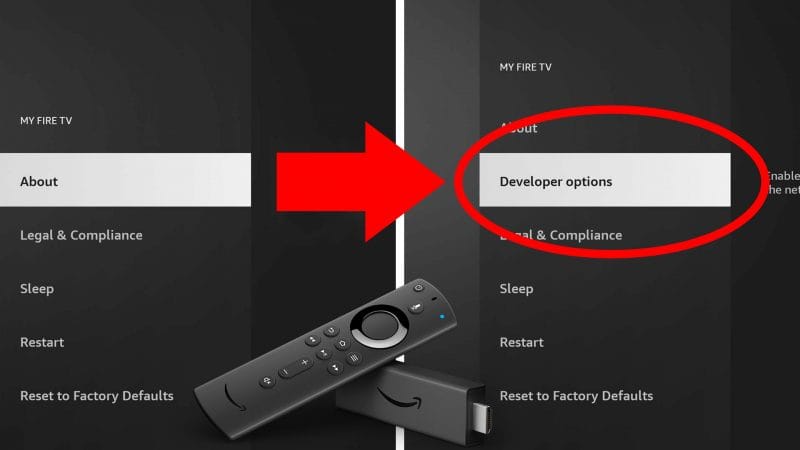
- Firestick Home → Settings
- Select My Fire TV
- Open Developer Options
- Turn ON Install Unknown Apps (ADB Debugging optional)
Install “Downloader” App (Most Common Method)
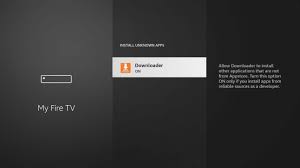
- Go to Find → Search
- Search for Downloader
- Install the Downloader app (orange icon)
Step 2: Install IPTV Smarters Player (Firestick)
Option 1: Amazon Appstore (If Available)
- Search for IPTV Smarters Player
- Install and open the app
Option 2: Install Using Downloader (Most Common IPTV Smarters Player Firestick Setup)
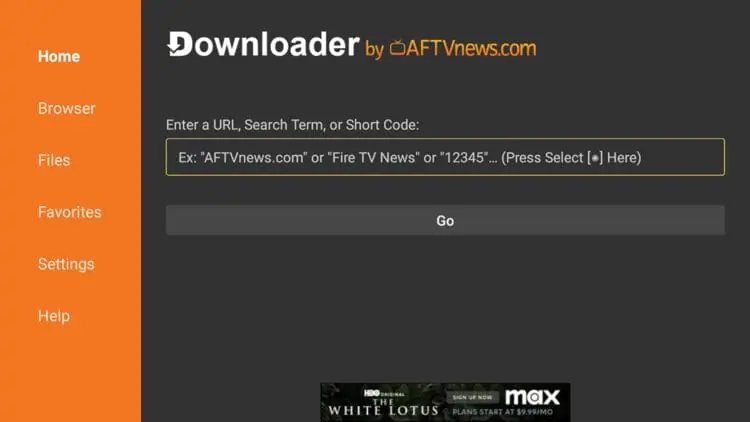
- Open Downloader
- Enter the official IPTV Smarters APK link (avoid modded sites)
- Download → select Install
- After install: choose Done and delete the APK to save storage
Move IPTV Smarters Player to the Home Screen
- Hold Home → open Apps
- Select IPTV Smarters Player → press Menu → Move to Front
Step 3: First Launch Setup
- Open IPTV Smarters Player
- Accept Terms & Conditions
- Allow basic playback permissions if prompted
Step 4: Add IPTV Login (IPTV Smarters Player Firestick Setup)
Method 1: Xtream Codes API (Recommended)
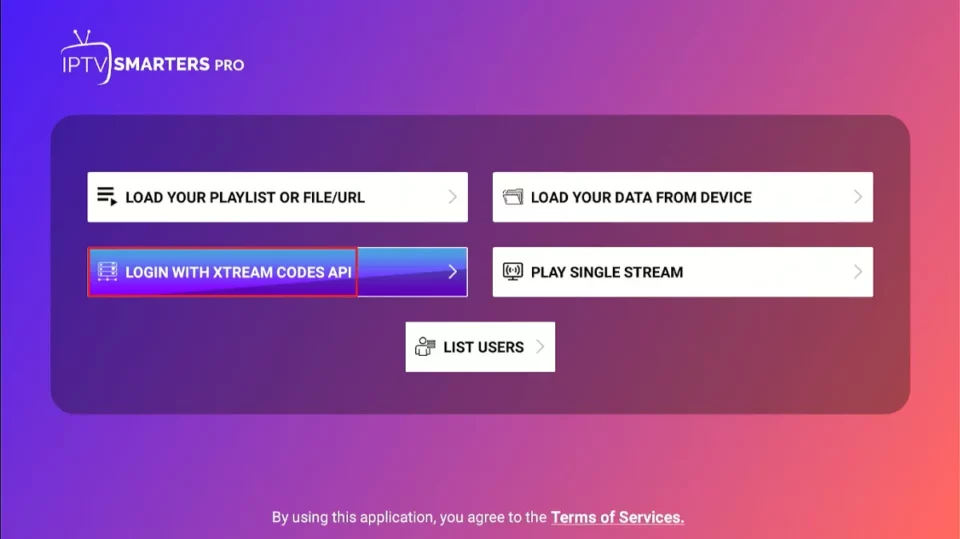
- Select Login with Xtream Codes API
- Enter Profile Name, Username, Password, and Server URL
- Select Add User and wait for content/EPG to load
Method 2: M3U Playlist URL
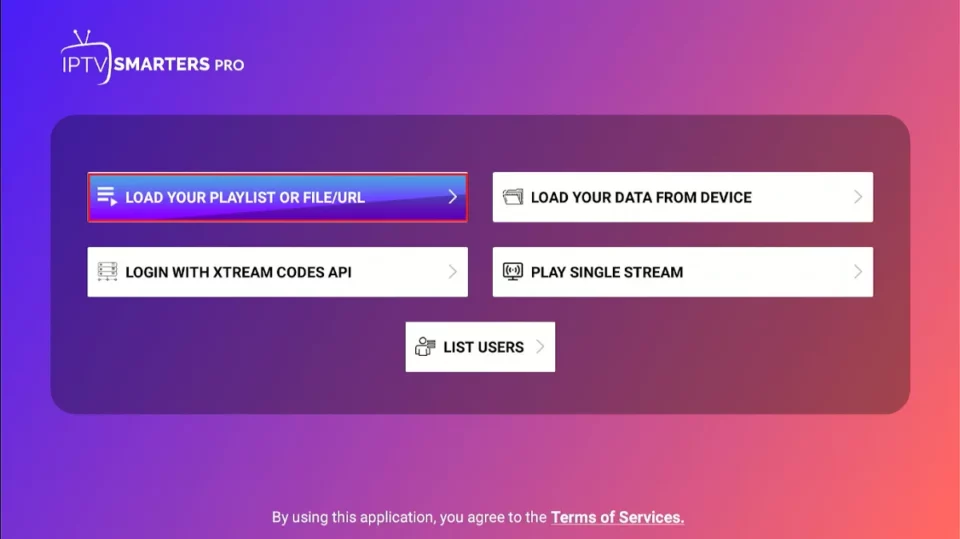
- Select Load Your Playlist or File
- Choose URL
- Enter Playlist Name + M3U Playlist URL
- Select Add User and wait for channels to import
Method 3: Stalker Portal (If Required)
- Select Stalker Portal
- Enter Portal URL and MAC Address (if required)
- Save and connect
Step 5: EPG (TV Guide) Setup
EPG for Xtream Codes (Usually Automatic)
- If missing: Settings → EPG → Update/Refresh
EPG for M3U Users (Manual)
- Get the EPG XML URL from your provider
- Go to Settings → EPG
- Add the EPG URL → run Update EPG
Fix Wrong Guide Times (Time Offset)
- Settings → EPG Time Offset → adjust +1 / -1 hour until it matches local time
Step 6: Best Settings for IPTV Smarters Player Firestick Setup
Open Settings → Player Settings and use these stable defaults:
- Streaming Format: HLS (most stable on Firestick)
- Hardware Decoder: ON
- Buffer Size: Small or Medium (test both)
- Video Output: Auto
Tip: If streams fail to start, switch HLS ↔ MPEGTS and test again.
Step 7: Troubleshooting (Fast Fixes)
App won’t install
- Confirm Install Unknown Apps is enabled
- Check storage and delete unused apps
- Re-download from a trusted source
Buffering or freezing
- Restart Firestick + router
- Try 5GHz Wi-Fi or Ethernet adapter
- Switch HLS ↔ MPEGTS
No channels loading
- Verify login details (URL + username + password)
- Reload user/playlist, then reopen the app
EPG not showing
- Run EPG Update/Refresh
- For M3U: confirm the EPG URL is XMLTV
- Adjust EPG Time Offset
Helpful External References
IPTV Smarters EPG Guideiptv smarters player firestick setupbest iptv services UKbest iptv for firestick4k iptvtop rated iptvsmarters iptviptv subscribeiptv streamersiptv smarters pro pciptv smarteriptv reviewsiptv playlistiptv francebest iptv servicesbest iptv providerIPTV UK Guideiptv suppliersiptv smarters pro subscriptioniptv service providerbest for iptvis iptv legaliptv streamingiptv box pricessmart iptviptv scheduleiptv tvpublic iptv playlistIPTV Subscription Guideiptv streamiptv smarters playeriptv proiptv playerbest iptv 2026iptv servicesiptv providers 2026IPTV Free Trial GuideIPTV Smart Playeriptv serviceiptv encoderiptv boxbest IPTVWhat is IPTVIPTV Smarters