
IPTV Smarters Pro: How to Install on Firestick, Android/Google TV, iPhone/iPad & Windows PC (2026 UK Guide)
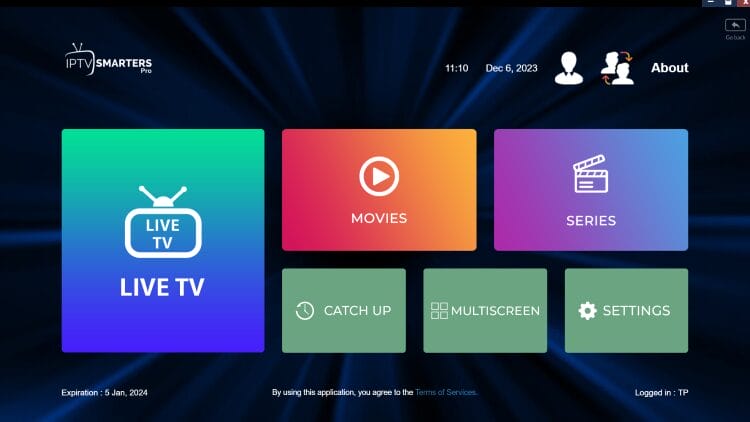
IPTV Smarters Pro is one of the most-used IPTV player apps for UK households because it supports Fire TV, Android/Google TV, iOS, and Windows with familiar features like EPG (Electronic Programme Guide), favourites, and multi-screen (device dependent). This guide shows safe, practical installation steps and clean setup using Xtream Codes API or an M3U URL.
Table of Contents
Jump- IPTV Smarters Pro overview (UK)
- What is IPTV Smarters Pro?
- Before you start (UK checklist)
- Features at a glance
- Install IPTV Smarters Pro on Firestick & Android/Google TV
- Set up IPTV Smarters Pro (Xtream Codes / M3U)
- Install on iPhone/iPad (Smarters Player Lite)
- Install IPTV Smarters Pro on Windows PC
- Install on Android phones & tablets
- Safety: trusted sources & permissions
- Troubleshooting (buffering, EPG, login)
- IPTV Smarters features guide
- FAQ (UK)
- External resources
- Final thoughts
IPTV Smarters Pro overview (UK)
Start hereIPTV Smarters Pro is a media player app used to load and organise authorised IPTV playlists on devices like Fire TV sticks, Android/Google TV boxes, iPhones, iPads, and Windows PCs. In plain terms: it gives you a tidy interface for browsing categories, opening streams, viewing schedules in an Electronic Programme Guide (EPG), and managing favourites or multi-screen layouts.
Important: IPTV Smarters Pro does not provide channels and does not host content. To use it, you add your provider details via Xtream Codes API or an M3U playlist URL. Those credentials are typically issued by a service you are authorised to use.
In the UK, the most common setup is Firestick/Fire TV connected to a telly for living-room viewing. Android/Google TV is also popular because it supports a wide range of boxes and TVs. iOS tends to show the player under a related listing name (often a “Lite” variant) depending on App Store availability.
Version note: the original draft referenced 3.1.5. App versions and listing names can change over time. The steps below remain valid even if your menus look slightly different.
What is IPTV Smarters Pro?
DefinitionIPTV Smarters Pro is an IPTV player that lets you connect authorised subscription details and stream:
- Live TV streams (where available and authorised)
- Video on Demand (VOD) libraries (if provided)
- Series catalogues (if provided)
Many providers don’t ship a dedicated app for every device. A player like IPTV Smarters Pro becomes the “front door”: you log in once using Xtream Codes or an M3U URL, and the player organises the categories into one consistent interface.
Before you start (UK checklist)
Avoid issuesDo these quick checks before installing. It saves time and prevents the common UK setup problems (failed login, EPG not loading, storage warnings).
- Xtream Codes: username, password, and server URL
- M3U: M3U playlist URL (and often a separate EPG URL)
- Keep credentials private (treat them like a password)
- Fire TV: Settings → My Fire TV → About (model + storage)
- Android/Google TV: Settings → About
- iPhone/iPad: Settings → General → About
- Windows: Settings → System → About
If you’re building a support flow for customers, link them to your own internal guides (no need to show any “suggested URL”): Support • Firestick setup • Why buffering happens
Features at a glance
Quick list- Free to install (player functionality)
- Supports Xtream Codes API, M3U URLs, and local playlist files
- EPG (Electronic Programme Guide) support
- Multiple playlists / user profiles
- Recording tools (device/storage dependent)
- Multi-screen viewing (device dependent)
- Parental controls (PIN-based)
- Optional external video players (if supported)
Feature behaviour varies by device. A newer Fire TV model or a capable Android TV box generally handles multi-screen and EPG refresh more smoothly than older hardware.
Install IPTV Smarters Pro on Firestick & Android/Google TV
TV installThese steps work on Fire TV devices and most Android/Google TV boxes. Because availability can change, the safest method is to install from an official developer source or a trusted download link you control. Avoid random “clone” APKs — they’re a common cause of ads, pop-ups, and suspicious permissions.
- Install the Downloader app on your device (Fire TV or Android/Google TV).
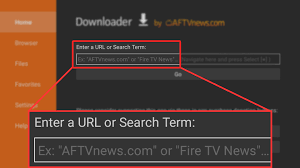
- Open Downloader, highlight the URL field, and press OK to bring up the keyboard.
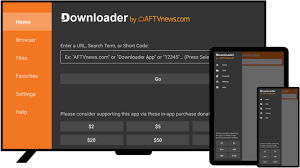
- Enter the official IPTV Smarters Pro download URL (or your chosen safe source) and click Go.
- Wait for the file to download.
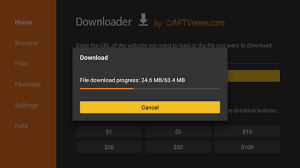
- If prompted, allow installation from unknown apps (Downloader).
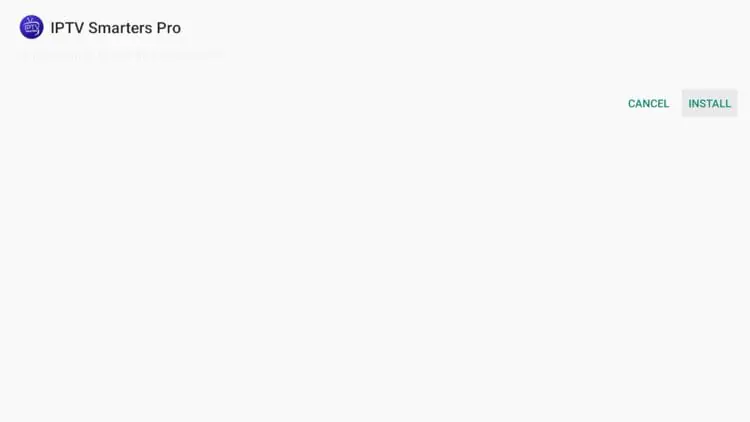
- When the installer appears, click Install.
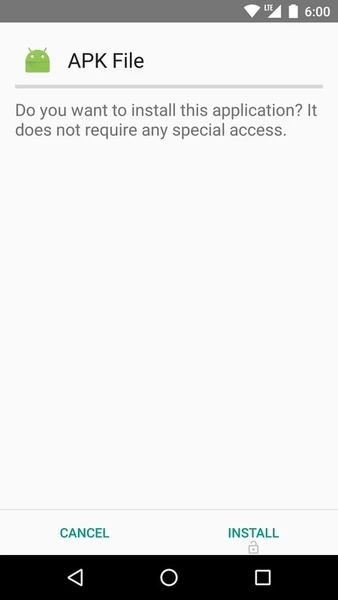
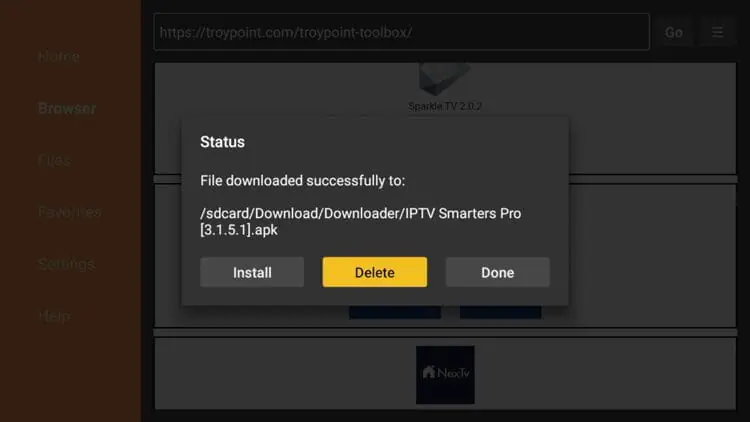
- After installation, return to Downloader and delete the installer file to free up space.
- Open IPTV Smarters Pro from your apps list.
Set up IPTV Smarters Pro (Xtream Codes API or M3U URL)
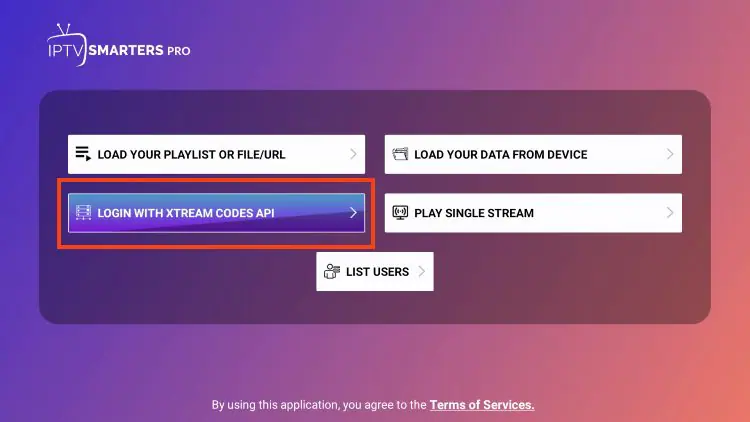
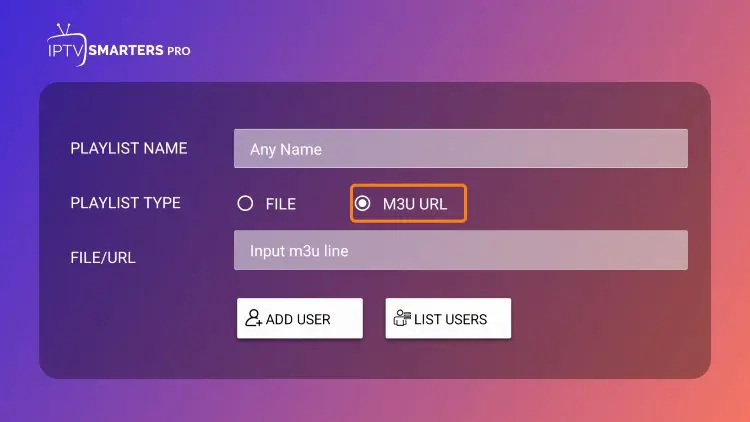
LoginMost people in the UK prefer Xtream Codes API because it’s usually faster and often loads categories/EPG automatically. Use M3U URL if your provider only supports M3U or if you want manual control of playlists and EPG sources.
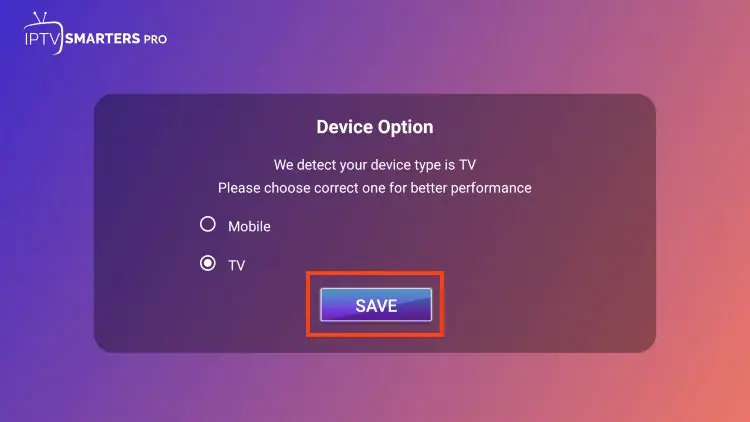
- Launch IPTV Smarters Pro and choose your device layout. For Firestick/Android TV/Google TV, select TV and click Save.
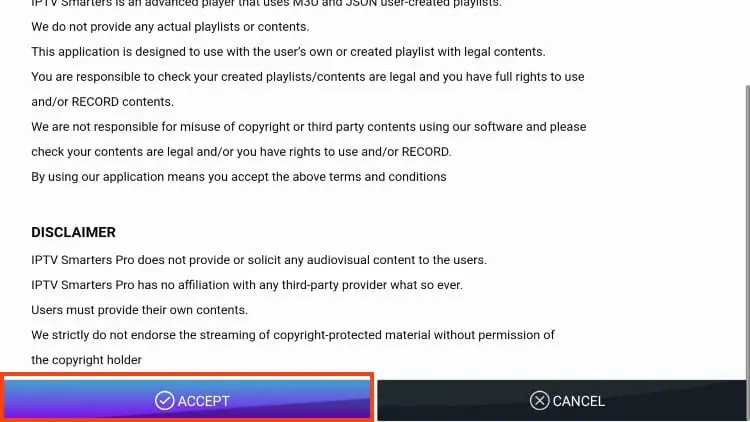
- Read the on-screen notice confirming the app does not provide playlists/content and select Accept.
- Select Login with Xtream Codes API (recommended), or use M3U URL if required by your provider.
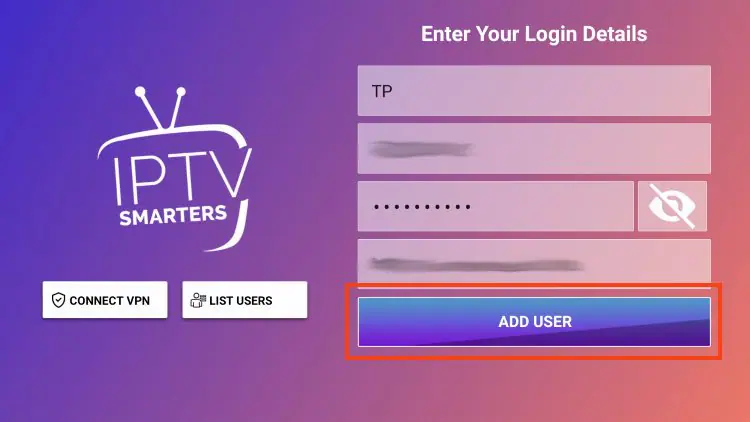
- Enter your account details and click Add User.
- Wait for the User added successfully message.
Recommended settings for smoother UK playback
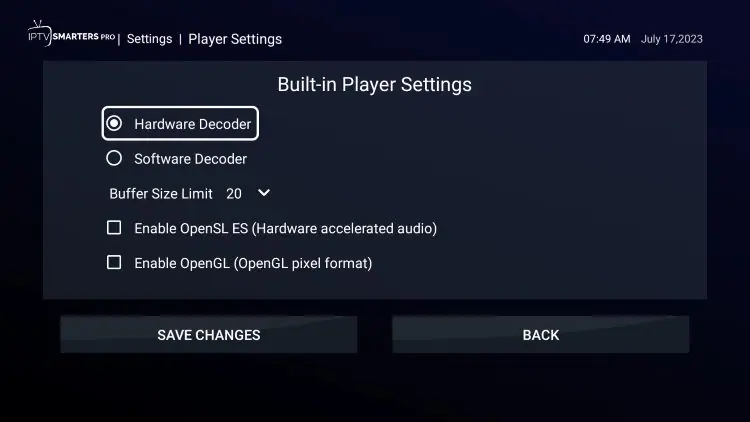
- Hardware Decoder: enable if your device supports it (can reduce stutter on some streams).
- EPG refresh: set to off-peak hours (early morning) if you have the option.
- Player choice: keep default first; consider an external player only if you have audio sync issues.
- Wi-Fi: 5GHz is usually better than 2.4GHz; reduce distance/walls to the router.
If you want a full “best results” setup path, see best devices & setup for IPTV.
Install IPTV Smarters on iPhone/iPad (UK)
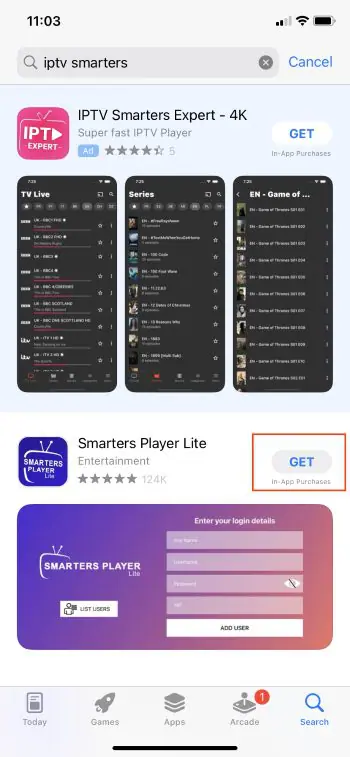
iOSOn iOS, IPTV Smarters-style apps may appear under different names depending on App Store availability. In the UK, you may see a legitimate listing such as Smarters Player Lite.
- Open the Apple App Store and search for IPTV Smarters.
- Select the official/legitimate listing available and tap Get.
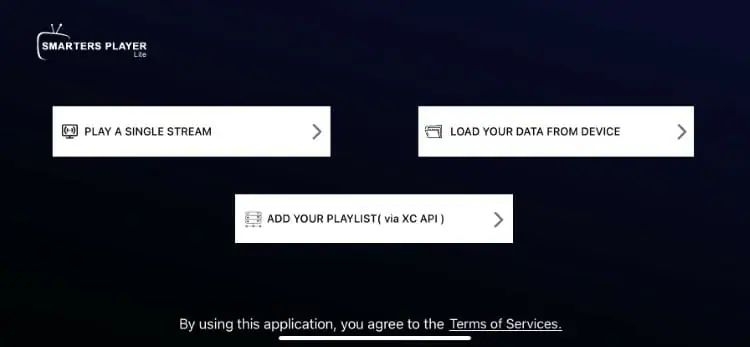
- Launch the app and proceed to the login screen.
- Log in using your authorised credentials (Xtream Codes or M3U) and load your playlist.
Install IPTV Smarters Pro on Windows PC
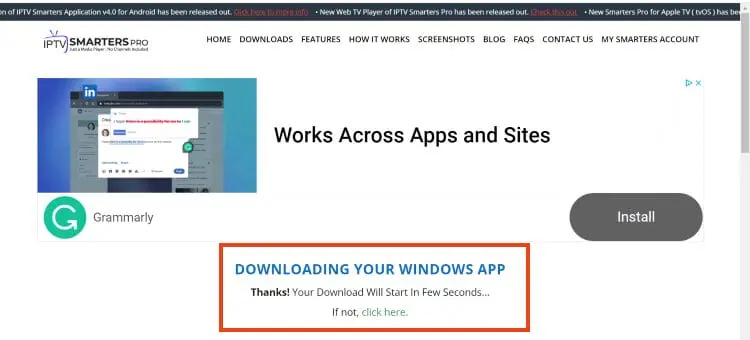
WindowsOn Windows, the safest approach is to download from the official developer downloads page rather than third-party mirrors. Mirrors can bundle unwanted software or outdated installers.
- Visit the official IPTV Smarters Pro website and open the Downloads section.
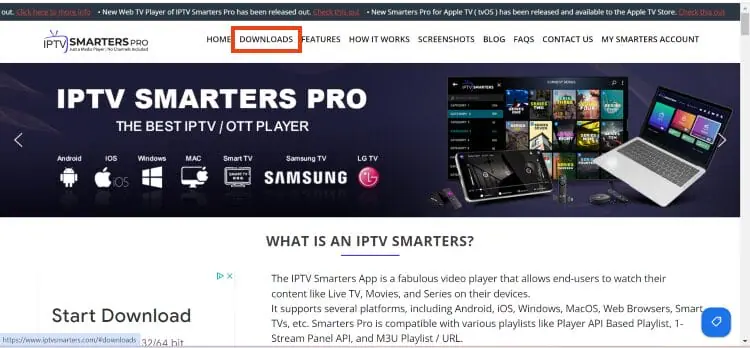
- Choose Download for Windows and wait for the file to download.
- Open the installer and follow the setup prompts.
- Launch IPTV Smarters Pro and log in with your provider credentials.
Windows troubleshooting tip: if you see audio delay, try switching player modes inside the app or (if supported) using an external player option.
Install IPTV Smarters on Android phones & tablets
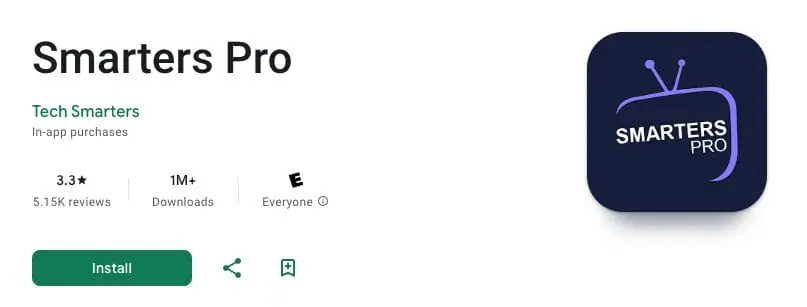
AndroidOn Android mobile devices, the most reliable method is installing the official APK directly from the developer source. Some Play Store listings may be incomplete or missing features, and clones can introduce ads or suspicious permissions.
Best practice: use only the official APK and avoid random reuploads.
Safety: trusted sources, permissions & account hygiene
ImportantThe biggest security risk with IPTV player installs is not the player itself — it’s installing the wrong file from an untrusted source. If you’re setting up a Firestick or Android box for a family living room, take 60 seconds to do this part properly.
Use trusted sources
Prefer official developer downloads or a link you control and trust. Avoid “premium unlocked”, “modded”, or reupload sites.
Check permissions
IPTV players typically do not need SMS, contacts, call logs, or device admin rights. If an app requests those, stop and uninstall.
Protect credentials
Xtream Codes and M3U links can be abused if leaked. Don’t post them publicly. Don’t share full screenshots of login pages.
Keep devices tidy
Delete APK installers after setup and keep free storage available. Low storage can cause slow EPG refresh and stuttering menus.
Troubleshooting IPTV Smarters Pro (buffering, EPG, login, black screen)
FixesIf IPTV Smarters Pro installs fine but playback feels unreliable, the root cause is usually one of these: your Wi-Fi, device performance, playlist/account limits, or EPG configuration. Use the checklist below in order — it’s the fastest way to isolate what’s wrong.
1) Buffering (especially 7–11pm UK peak hours)
- Test your network first: restart the router (power off 30 seconds), then retest.
- Improve signal: move the device closer to the router or use Ethernet.
- Reduce congestion: pause large downloads/updates during live viewing.
- Device heat: Fire TV sticks can run hot behind the telly; ensure airflow.
- Compare devices: test the same stream on a phone vs Firestick to see if it’s device-limited.
2) “Invalid username/password” or login fails
- Re-enter credentials carefully (watch for trailing spaces).
- Confirm the server URL begins with http:// or https:// exactly as supplied.
- If using M3U, confirm you pasted the full URL without line breaks.
- If you have a multi-device plan, confirm you haven’t exceeded device limits.
3) EPG not loading or empty guide
- Xtream Codes: try refreshing EPG, then wait several minutes for first load.
- M3U: you may need a separate EPG URL (XMLTV). Paste it exactly in the EPG settings.
- EPG population takes time; don’t assume failure instantly, especially on older devices.
4) Black screen / audio only
- Toggle Hardware Decoder on/off and test again.
- Try an external player only if supported and you trust the player source.
- If your service offers stream format options (e.g., HLS vs TS), test the alternative format.
5) App feels slow or crashes
- Clear cache (safer than clearing data first).
- Free up storage (delete installers, unused apps).
- Restart the device after installing updates or switching player modes.
Want the “why” behind buffering and peak-time instability? Read how IPTV streaming works.
IPTV Smarters features guide (EPG, recording, multi-screen & more)
Feature tourIPTV Smarters Pro includes favourites, EPG, multi-screen, parental controls, playlist management, and (in some versions) a web player. Below is a practical guide for the features people use most on Firestick and Android/Google TV.
Multiple playlists
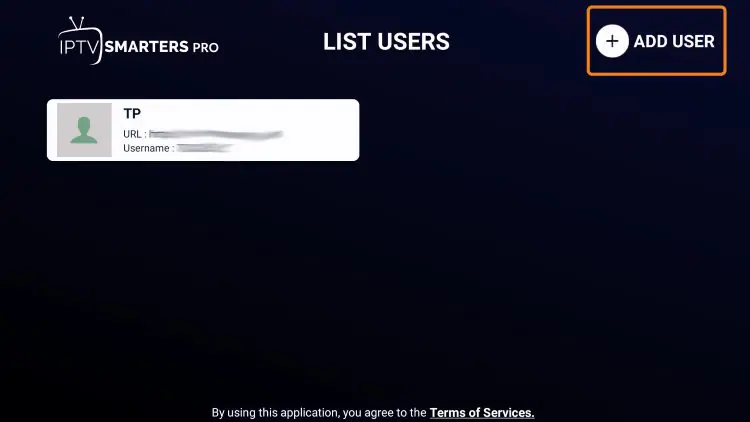
You can add more than one playlist (user profile) inside IPTV Smarters Pro. This is useful if you manage more than one household profile or want a backup login for reliability. In settings, choose Add User to add additional playlists.
Electronic Programme Guide (EPG)
If you use Xtream Codes, EPG often loads automatically. If you use an M3U URL, you may need to add an EPG link manually. Once loaded, you can browse channel schedules in a clean guide format.
- From the main menu, open the EPG installation option.
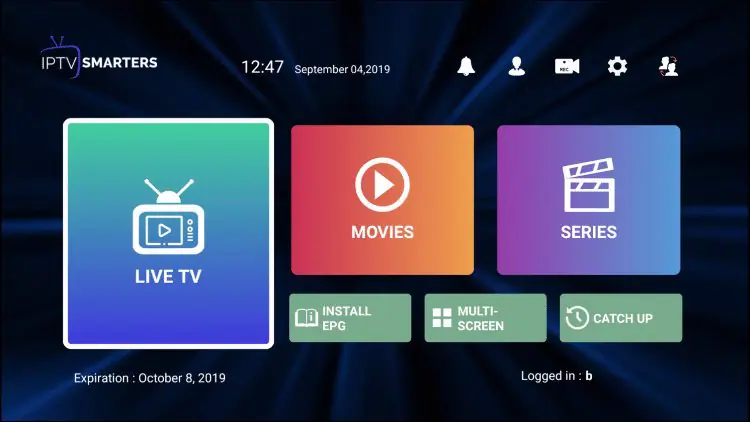
- Enter your EPG source URL (provided by your service).
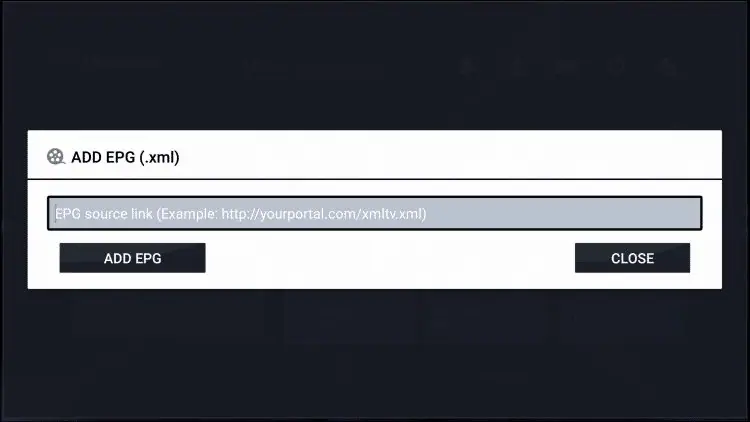
- Click Add EPG and wait for it to populate.
Recording
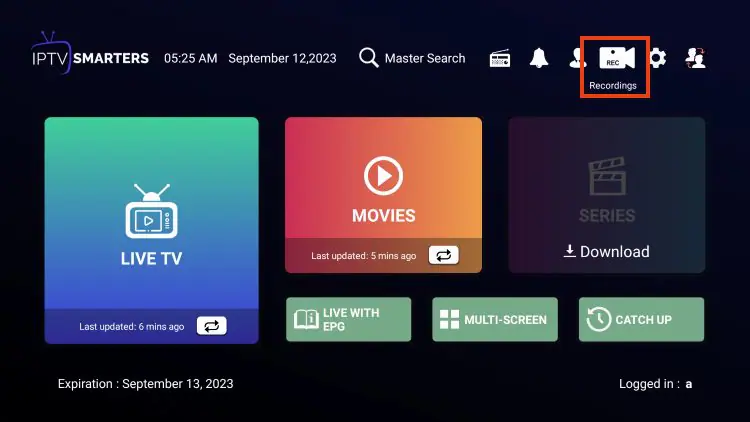
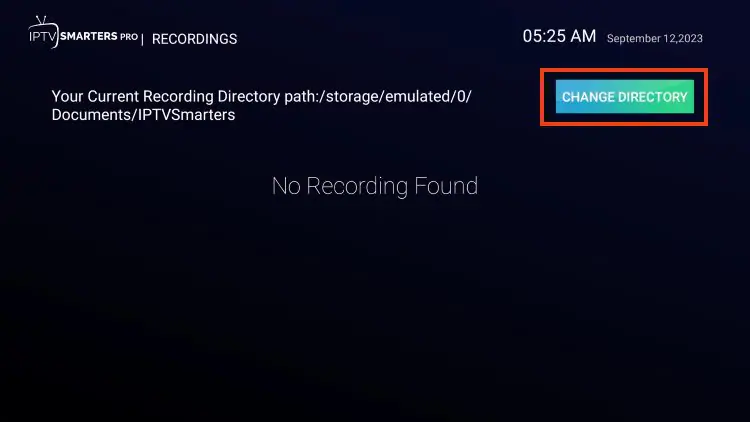
Recording lets you save content to watch later (storage-dependent). For best results, use sufficient internal storage or a supported external drive. Some streaming devices have formatting constraints; if recording fails, it’s often a storage path or permission issue rather than a player bug.
Multi-screen
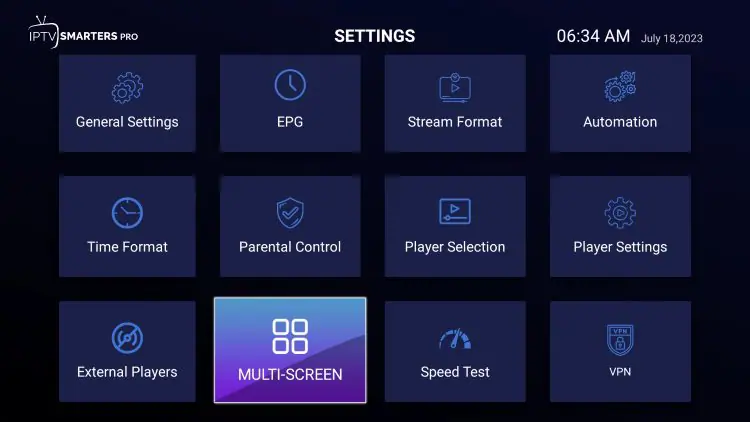
Multi-screen allows watching multiple streams at once using split layouts (device performance required). If playback stutters on 4-screen, drop to 2-screen and test again. This feature is demanding on CPU, RAM, and network stability.
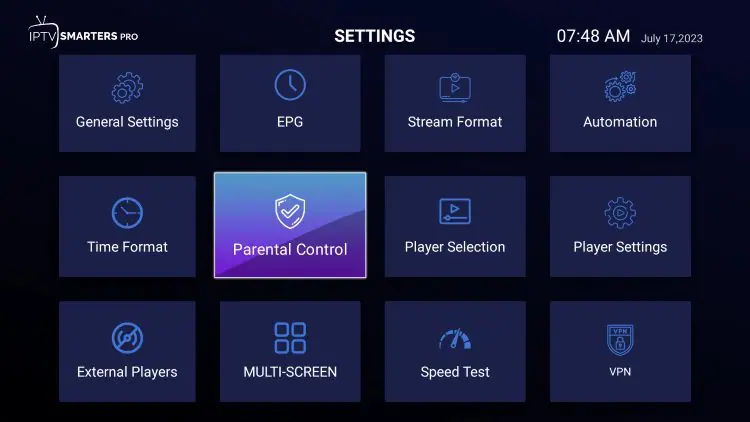
Parental control
Parental control can be enabled by creating a PIN. The app will request this PIN when opening restricted categories or content. If you’re setting up a shared family device, this is worth enabling from day one.
External video players
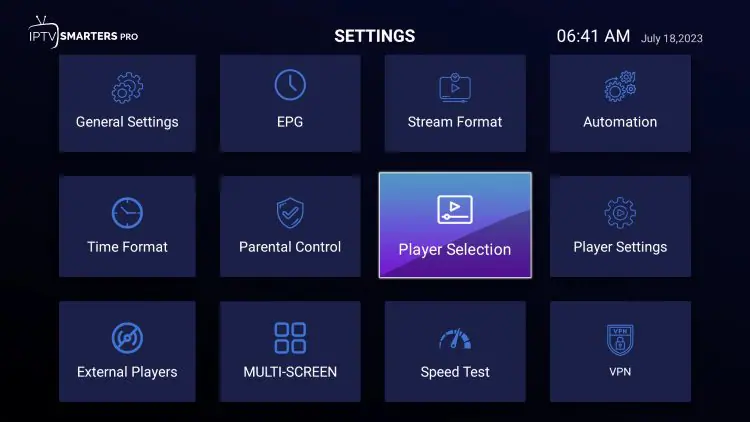
IPTV Smarters Pro can use external video players for playback. If you install a compatible player (such as MX Player), you can select it under Player Settings and assign it to specific categories.
For smoother playback on supported devices, confirm decoder settings.
Web player
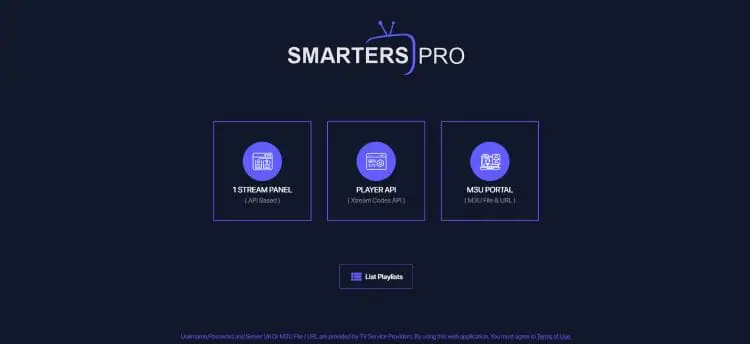
Some Smarters versions provide a web player option that allows access through a browser. If available, you can log in using Xtream Codes or M3U and browse your setup while travelling or using a laptop without installing a full app.
FAQ (UK)
AnswersIs IPTV Smarters Pro legal in the UK?
IPTV Smarters Pro is a media player app. The app itself is not “a service”. Legality depends on the content you access and whether you have the rights/licence to view it. Use authorised services, and avoid sources that don’t clearly have permission to distribute content.
Should I use Xtream Codes or an M3U URL?
Xtream Codes is often easier because it can automatically organise categories and EPG (where supported). Use M3U if your provider only supplies an M3U link or if you want manual control of playlist + EPG URLs.
Why is my EPG missing or out of sync?
EPG can take time to populate on first load. If you use M3U, you may need to add a separate EPG (XMLTV) URL. For time zone issues, check device time settings and ensure your Fire TV or Android box is set correctly.
What’s the fastest way to reduce buffering?
Improve your network path: use Ethernet if possible, reduce Wi-Fi distance, avoid peak-hour congestion, and keep spare device storage. Then check whether the same stream behaves differently on a second device — this quickly shows whether you’re device-limited or network-limited.
If you want a complete setup performance checklist, see best devices & setup for IPTV.
External resources
Neutral- Apple Support (UK)
- Microsoft Support (UK)
- Cloudflare Learning Centre (network basics)
- WIPO: copyright basics
- Wikipedia: Internet Protocol television (definition)
These are neutral references for platform help, network basics, and general definitions (no channel lists or source links).
Final thoughts
RecapIPTV Smarters Pro is a flexible IPTV player that works across Firestick/Fire TV, Android/Google TV, iPhone/iPad, and Windows. For the best UK experience: install from trusted sources, keep the app updated, maintain spare storage, and only connect playlists you’re authorised to use. If problems show up, troubleshoot in order: network first, then credentials, then EPG configuration, then player/decoder settings.
↑ Back to top