

IPTV Smarters Buffering Fix Guide (UK 2026): Step-by-Step Troubleshooting + Best Settings
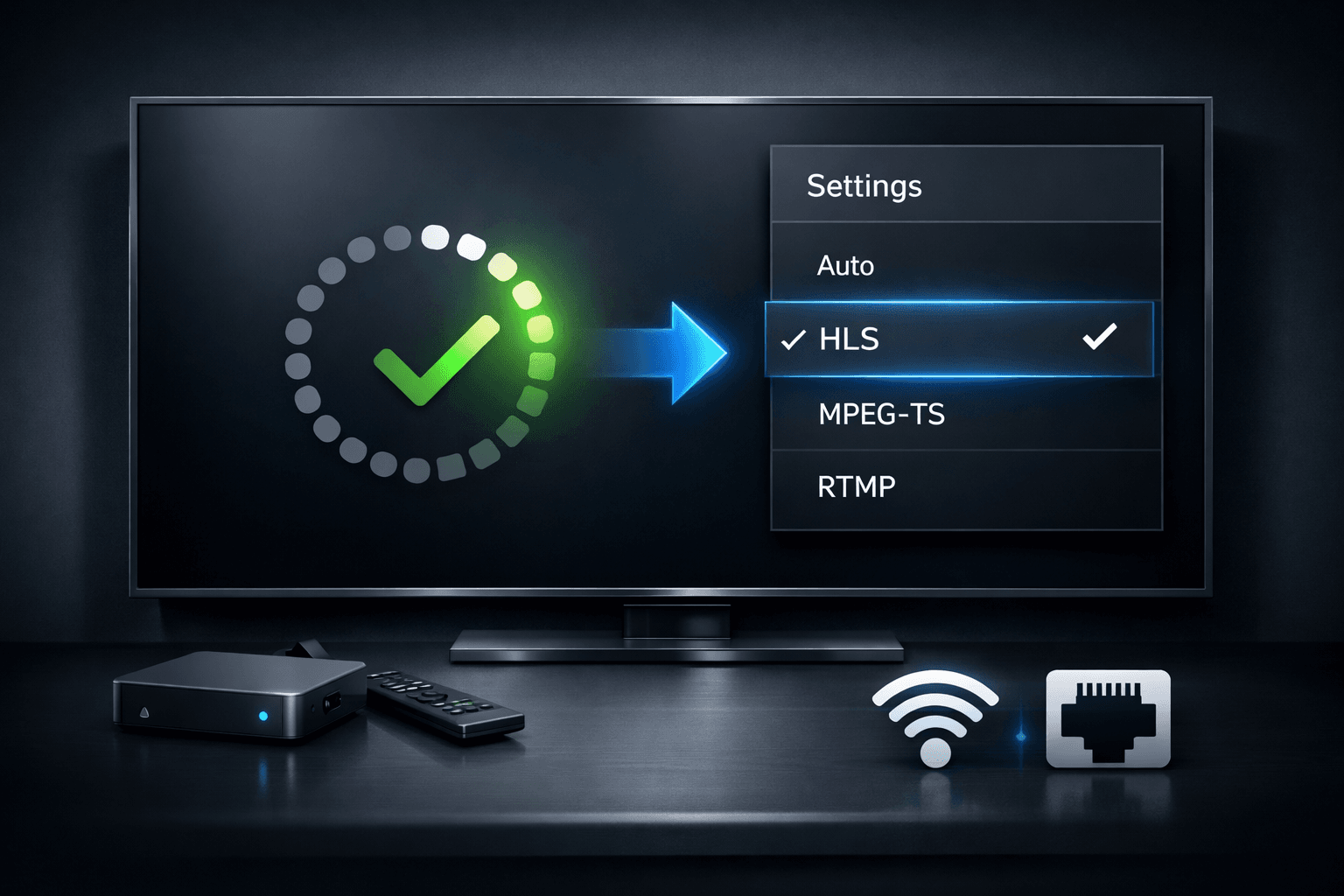
This IPTV Smarters buffering fix guide is built for the most common UK viewing reality: busy evening networks,
Firesticks behind the TV, and fluctuating routes during 7–11pm peak hours. You’ll learn how to identify the type of buffering,
fix the highest-impact network issues first, and apply the best IPTV Smarters settings (like HLS, decoder options, and buffer size).
We keep it practical and lawful: no channel lists, no “unofficial sources” — just stability troubleshooting.
This page is informational and focuses on playback stability, device health, and home network quality.
Only access content you’re authorised to view and follow your service’s terms.
then do Step 2 (internet fixes) before touching app settings.
For deeper causes (routing, congestion, device choice) also read how IPTV streaming works and
best devices & setup for IPTV.
Table of Contents
Jump
- What you’ll need for an IPTV Smarters Buffering fix guide
- Why IPTV Smarters buffers (UK reality)
- Step 1: Identify the buffering type (quick test)
- Step 2: Fix your internet first (most common cause)
- Step 3: Best IPTV Smarters settings (HLS, decoder, buffer)
- Step 4: Reduce device load (Firestick/Android/older devices)
- Step 5: Test your IPTV source (provider vs app)
- Step 6: Fix peak-hour buffering (evenings/weekends)
- Step 7: Quick fix checklist (copy/paste)
- Advanced UK network tips (router/QoS/DNS)
- FAQ (UK)
- External resources
- Related guides on our site
What you’ll need for an IPTV Smarters buffering fix guide
Checklist
- IPTV Smarters (Smarters Player / Smarters Pro) installed
- Stable internet connection (Wi-Fi or Ethernet)
- Your login method (Xtream Codes or M3U) already added
- Optional (recommended): Ethernet adapter (Firestick/Android TV) or 5GHz Wi-Fi
This guide helps you isolate the real cause and fix it fast — instead of guessing.
If you’re still setting up the player, start here:
IPTV Smarters on Firestick setup.
Why IPTV Smarters buffers (UK reality)
Root causes
“Buffering” is not one problem — it’s a symptom. In UK home setups, the same app can feel perfect at 2pm and struggle at 9pm because multiple
factors stack together: household Wi-Fi contention, neighbourhood interference, and upstream congestion. The fastest path to a fix is to test in the right order:
network → device → player settings → source/provider load.
Most common UK cause
- Weak Wi-Fi near the TV (Firestick tucked behind the telly)
- Busy home network in the evening (multiple streams, gaming, downloads)
- Router placement/interference (walls, metal, distance)
Second most common
- Low device storage/overheating
- Too many background apps running
- Wrong player settings for your stream (HLS vs MPEGTS)
For a deeper explanation (and what you can control), read how IPTV streaming works.
Step 1: Identify the buffering type (quick test)
Diagnose
- Open IPTV Smarters and play a channel that buffers.
- Switch to 2–3 other channels (different categories if possible).
- Note what happens:
- Only 1–2 channels buffer → likely a channel/source issue
- Most channels buffer → likely internet/device/settings/provider load
- Only buffers at night/weekends → likely peak hour server congestion
If only one stream buffers, changing Wi-Fi or app settings won’t reliably solve it — you need a more stable source.
Step 2: Fix your internet first (most common cause)
Highest impact
A) Restart the basics (fastest win)
- Restart the router/modem.
- Restart your device (Firestick/Android/iOS/PC).
- Test again.
B) Improve Wi-Fi quality
- Move closer to the router (even temporarily for testing).
- Use 5GHz Wi-Fi (faster, less interference) if your router supports it.
- Avoid streaming in weak signal areas (far corners, behind thick walls).
C) Use Ethernet if possible (best fix)
- Firestick/Android TV: use an Ethernet adapter.
- PC: plug in directly with a cable.
Tip: If Ethernet fixes buffering instantly, your problem was Wi-Fi (not the IPTV app).
Small signal improvements often beat endless app setting tweaks.
Step 3: Best IPTV Smarters settings (best streaming settings)
Player
Go to Settings → Player Settings (names can vary slightly):
Recommended settings
- Streaming Format: HLS (most stable for many networks)
- Hardware Decoder: ON (if your device supports it well)
- Auto Frame Rate: OFF (reduces switching glitches on some TVs)
- Buffer Size: Small first (then try Medium if needed)
If it still buffers:
- Switch Streaming Format:
- If on HLS, try MPEGTS
- If on MPEGTS, switch back to HLS
- Test the same channel again after switching.
| Format | When it’s usually better | What to watch for |
|---|---|---|
| HLS | Unstable routes, Wi-Fi variability, peak-hour congestion | Can add a little latency; usually smoother under fluctuation |
| MPEGTS | Strong stable network, low latency preference | Can stutter more if packets drop or routes fluctuate |
If you’re testing whether routing is the issue, see:
IPTV Smarters VPN Guide.
Step 4: Reduce device load (Firestick / Android / older devices)
Device
A) Close background apps
- Firestick/Android: open recent apps and close anything not needed.
B) Free storage (low storage causes stutter)
- Delete unused apps.
- Clear cached data.
C) Reboot and clear cache (especially Firestick/Android)
- Settings → Apps → IPTV Smarters → Clear Cache
- Reopen and test streaming.
If buffering appears after 30–60 minutes, add airflow or use an HDMI extender to move the stick away from the TV’s heat.
Step 5: Test your IPTV source (provider vs app)
Isolate
A) Confirm it’s not just Smarters
If you can, test the same login on another device:
- Phone hotspot test
- Another TV/device
- Another player app you already use
If buffering happens everywhere at the same time:
- It’s likely provider/server load or the channel source.
B) Try a different network (important test)
- Switch from Wi-Fi to mobile hotspot for 2 minutes and test the same channel.
- Works fine on hotspot → your home network is the issue
- Still buffers on hotspot → provider/channel/server issue
If hotspot is smooth, stop changing Smarters settings and fix Wi-Fi/router first.
Step 6: Fix peak-hour buffering (common)
Evenings
If buffering happens mostly at night/weekends:
- Try HLS (often handles congestion better).
- Buffer size tweaks can help a little, but the real fix is usually:
- Use a more stable server/source (provider side)
- Avoid overloaded categories (test multiple channels)
If you suspect routing issues, run the proof test in our
IPTV Smarters VPN Guide.
Step 7: Quick fix checklist (copy/paste)
Fast
✅ Restart router + device
✅ Switch to 5GHz Wi-Fi or Ethernet
✅ Streaming format: HLS
✅ Hardware decoder: ON
✅ Clear cache
✅ Test different channels
✅ Test hotspot to confirm network vs provider
✅ If only evening buffering: reduce home congestion + test VPN routing
Advanced UK network tips (router/QoS/DNS)
Optional
If you’ve done Steps 1–7 and still see buffering, these advanced checks can help — especially in busy UK households or flats with heavy Wi-Fi interference.
Only change one thing at a time and re-test the same channel for 5–10 minutes.
Enable QoS / traffic priority
If your router supports QoS, prioritise your streaming device so gaming/downloads don’t starve video streams.
Split Wi-Fi names (2.4GHz vs 5GHz)
If devices keep bouncing bands, separate SSIDs so your TV stick stays on 5GHz consistently.
Try a different DNS (carefully)
Some networks resolve endpoints slowly. Test a reputable DNS, but revert if it causes playback issues.
Update router firmware
Outdated firmware can cause stability problems under load. Update from the official router vendor.
FAQ (UK)
Answers
What’s the single best fix for buffering on Firestick?
Use Ethernet (via adapter) or ensure strong 5GHz Wi-Fi. In UK homes, weak Wi-Fi near the TV is the #1 cause.
Then set Streaming Format to HLS and clear cache.
Should I use HLS or MPEGTS?
Start with HLS for stability (especially evenings/weekends). If your network is strong and you prefer lower latency,
test MPEGTS. Always compare using the same channel/time window.
Why do only some channels buffer?
That usually points to a stream/source issue (or upstream load for that category), not your Wi-Fi. Confirm by testing other channels and another network (hotspot).
Can a VPN fix buffering?
Sometimes — if the issue is routing or congestion. It won’t fix a weak Wi-Fi signal or an overloaded upstream server.
Use our IPTV Smarters VPN Guide proof test to confirm.
External resources
Neutral
- Cloudflare: what is latency?
- HLS (HTTP Live Streaming) overview
- Wi-Fi basics (definition)
- WIPO: copyright basics
Neutral references for networking definitions and consumer guidance (no unauthorised streaming instructions).