

IPTV Smarters Pro on Android: 9 Fast Fixes + The Ultimate Install & Setup Guide (UK, 2026)
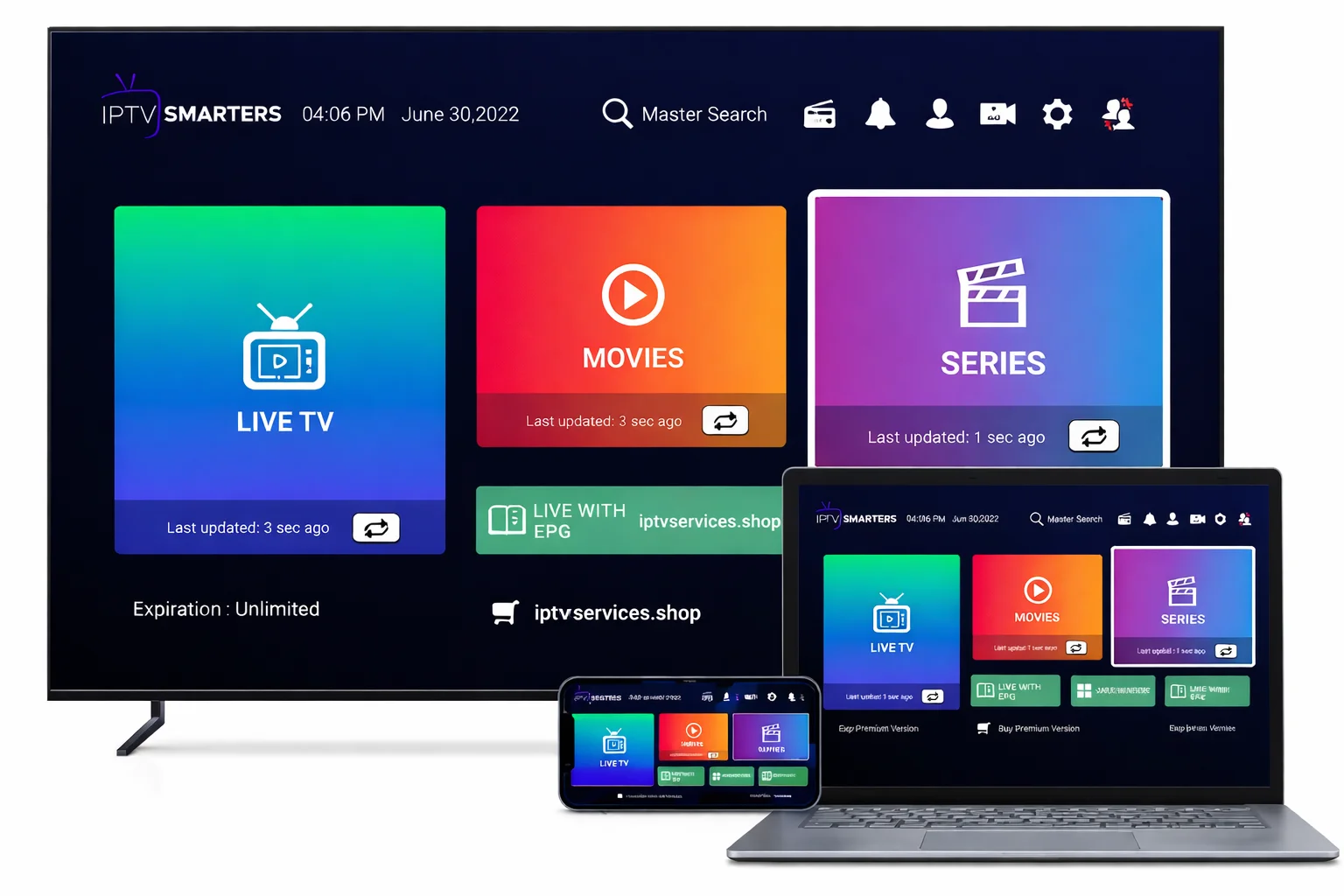
IPTV Smarters Pro is a media player app that helps you organise and play streams from a service you already use.
This UK guide focuses on Android phones/tablets and the common “real household” problems: clean install, login options,
EPG/TV Guide time offsets (BST/GMT), stutter/buffering causes, and the settings that most often improve stability.
Only use services and playlists you’re authorised to access, and follow UK law and your provider’s terms.
If you’re already installed, jump straight to best player settings and fast fixes.
For deeper buffering diagnosis, use our internal troubleshooting page: IPTV Smarters buffering fix.
Table of Contents
Jump
- What IPTV Smarters Pro is (and isn’t)
- What you’ll need (UK checklist)
- Step 1 — Install IPTV Smarters Pro safely
- Step 2 — First launch settings that matter
- Step 3 — IPTV Smarters Pro login: Xtream vs M3U
- Step 4 — EPG / TV Guide fixes (BST/GMT)
- Step 5 — Best IPTV Smarters Pro settings (stable streaming)
- Step 6 — Network + device stability checklist
- Step 7 — 9 fast fixes (most common issues)
- FAQ (UK)
- External resources (neutral)
- Related guides on our site
1) What IPTV Smarters Pro Is (and Isn’t)
Clarity
IPTV Smarters Pro is best understood as a player: it’s an app that loads connection details (like Xtream Codes or an M3U playlist)
and then presents live TV, VOD, and EPG in a clean interface—depending on what your authorised service provides.
What it does well: profiles, categories, search, favourites, EPG display, and multiple playback options that can be tuned for stability.
What it doesn’t do: it doesn’t “create” content or grant rights to watch anything by itself.
player settings, device decoding, home network, or peak-hour capacity.
This guide helps you isolate which one is responsible.
2) What You’ll Need for IPTV Smarters Pro on Android (UK)
Checklist
- Android phone or tablet (Android 7+ recommended; newer devices tend to decode video more efficiently)
- Stable internet (5GHz Wi-Fi is usually best at home; Ethernet via adapter can help for fixed setups)
- Login details from a service you’re authorised to use:
- Xtream Codes API (often easiest: categories + EPG typically load automatically)
- M3U playlist URL (works well, but may require an EPG XML URL)
- Optional EPG XML (XMLTV) URL (commonly used with M3U setups)
- Correct time settings (UK time zone + daylight saving behaviour matters for EPG accuracy)
Don’t start by changing ten settings at once—make one change, test the same channel, then decide.
If buffering is your main issue, keep this open in another tab:
IPTV Smarters buffering fix.
3) Step 1 — Install IPTV Smarters Pro Safely (Android, UK)
Install
A clean install matters because many “mystery” playback issues are actually caused by outdated builds, permission conflicts,
or modified APKs from third-party reuploads. Start with the safest method available to you.
Option A: Google Play Store (preferred)
Install, then open the app once before adding login details.
Option B: APK install (only if Play isn’t available)
Avoid “modded” builds—these can introduce instability or risky permissions.
Install via Google Play Store (recommended)
- Open the Google Play Store.
- Search: IPTV Smarters or Smarters Player.
- Check the listing for normal permissions, reasonable reviews, and recent updates.
- Tap Install → then Open.
Install via APK (only if required)
- Download the APK from a trusted source (avoid random reuploads and “cracked/modded” files).
- Go to Settings → Security/Privacy → enable Install unknown apps for your browser/file manager.
- Open the downloaded APK → tap Install → then Open.
If you see requests that don’t match a media player (especially anything suspicious), decline and review the app source.
Need a full setup flow across devices (not just Android)?
Use: Install IPTV Smarters Pro (All Devices).
4) Step 2 — First Launch Settings That Actually Matter
Basics
Before you add login details, take 60 seconds to prevent the most common “why is this app laggy?” problems.
You’re aiming for a stable baseline: correct time, clean permissions, and no background battery restrictions.
Do this first (Android)
- Date & time: set to Automatic (network-provided)
- Time zone: confirm it matches UK time settings
- Battery optimisation: if the app freezes in background, allow normal background activity
- Storage space: keep some free space (low storage can cause stutter and crashes)
Good defaults inside the app
- Accept terms if prompted
- Allow only essential playback permissions
- Use a simple profile name (you can rename later)
- Don’t tweak advanced player settings yet—log in first, then tune
5) Step 3 — IPTV Smarters Pro Login on Android (Xtream Codes vs M3U)
Login
Most UK users find Xtream Codes the smoothest in IPTV Smarters Pro because it often loads categories and EPG with fewer manual steps.
M3U also works well, but EPG can be more sensitive to time settings, matching, and refresh behaviour.
IPTV Smarters Pro: Xtream Codes API login (recommended)
- Tap Add User / Add New User.
- Select Login with Xtream Codes API.
- Enter:
- Profile Name (example: “Home”)
- Username
- Password
- Server URL (example format:
http://server:port)
- Tap Add User → wait for categories/EPG to load.
Need the exact fields + screenshots guidance? Use:
IPTV Smarters Xtream Codes setup guide.
IPTV Smarters Pro: M3U playlist login (URL)
- Tap Add User.
- Select Load Your Playlist or File → choose URL.
- Enter:
- Playlist Name (example: “My Playlist”)
- M3U Playlist URL (paste carefully; remove trailing spaces)
- Tap Add User → wait for import.
Full walkthrough for M3U users:
IPTV Smarters M3U playlist setup guide.
http:// or an incorrect port.If “Invalid Login” appears, re-paste the details and test again before changing settings.
6) Step 4 — IPTV Smarters Pro EPG / TV Guide Fix (UK BST/GMT)
EPG
If the guide is blank or times are off, it’s usually one of three causes: the EPG source didn’t load, the refresh failed,
or the device time/DST is wrong for UK local time. Fix it in a clean order.
Refresh EPG properly
- Open Settings → EPG.
- Tap Update / Refresh EPG and wait 30–120 seconds.
- Return to Live TV → open the guide again.
- If it’s still blank, fully close the app (swipe away) and reopen.
Add EPG XML URL (common for M3U setups)
- Go to Settings → EPG.
- Select Add EPG Source / Add EPG URL.
- Paste your EPG XML (XMLTV) URL → save → refresh EPG.
Fix UK time offset (BST/GMT)
- Look for EPG Time Offset / Time Shift / Time Correction.
- Adjust by +1 or -1 until guide times match UK local time.
- On Android, set Date & time to Automatic (network-provided).
Full deep guide:
IPTV Smarters EPG guide.
7) Step 5 — Best IPTV Smarters Pro Settings (Stable Streaming on Android)
Performance
The goal is stability first, then quality. Start with settings that reduce stutter, improve decoding, and keep streams resilient
when your Wi-Fi fluctuates. Make one change at a time and test the same channel for 2–3 minutes.
Recommended starting settings
- Streaming format: HLS (often most stable)
- Hardware decoder: ON (if available)
- Buffer size: Small → then Medium if needed
- Renderer/output: Auto
- Auto play next: optional (preference)
If a stream won’t load or stutters
- Switch HLS ↔ MPEGTS and re-test the same channel
- Test 2–3 channels to confirm it’s not a single-stream issue
- Restart router + Android device before deeper changes
- Close background downloads and heavy apps
but network stability checks matter more. Use the fast checklist in the next section.
If your setup includes VPN testing, use:
IPTV Smarters VPN guide.
8) Step 6 — UK Stability Checklist: Network + Device (Before You Blame the App)
Quality
Many “IPTV app problems” are actually home network problems that show up during longer viewing sessions.
This section helps you quickly confirm whether your Android device and Wi-Fi are the bottleneck.
Wi-Fi: the UK household basics
- Prefer 5GHz Wi-Fi when close to the router (less interference than 2.4GHz).
- If you’re far from the router, 2.4GHz can be more consistent—test both.
- Move closer to the router for a 5-minute test. If buffering disappears, it’s signal/coverage.
- Reboot the router (yes, really). A fresh reboot often improves stability for hours.
Android device performance checks
- Close background apps (especially downloads, game updates, and social apps that autoplay video).
- Make sure you have free storage space—low storage can cause freezing and slow decoding.
- Disable “battery saver” for the session if it throttles playback or background refresh.
Simple “is it my connection?” test
- Test the same channel at two different times (peak hours vs off-peak).
- Try mobile data briefly (if possible). If it’s stable on mobile but not on Wi-Fi, your home network is the issue.
- If issues are identical everywhere, review login details, playlist/EPG, or service-side stability.
For a structured, step-by-step buffering diagnosis:
IPTV Smarters buffering fix.
9) Step 7 — IPTV Smarters Pro Android: 9 Fast Fixes (Most Common UK Issues)
Troubleshooting
Use these fixes in order. Each one targets a specific failure mode (install, login, EPG, playback, buffering).
Don’t apply all of them at once—test after each change so you know what actually helped.
Fix #1 — App won’t install
- If APK: confirm Install unknown apps is enabled for your browser/file manager.
- Re-download from a trusted source (avoid modded builds).
- Free up storage space and reboot the device.
Fix #2 — App opens but feels laggy
- Close background apps and disable battery saver for the session.
- Restart the phone/tablet once after installation.
- Turn hardware decoding ON (if available) and keep buffer size Small/Medium.
Fix #3 — “Invalid Login” on Xtream Codes
- Confirm server format includes
http://(orhttps://if provided) and the correct port. - Re-paste username/password (watch for invisible trailing spaces).
- If you need a clean field-by-field walkthrough:
Xtream Codes setup guide.
Fix #4 — M3U loads but channels/categories look empty
- Open the M3U URL in a browser: it should download or display plain text.
- Reload/refresh the playlist inside the app (or re-add the user profile).
- Test on another network (mobile data briefly) to rule out ISP or router filtering.
Fix #5 — EPG/TV Guide is blank
- Refresh EPG, then fully close the app and reopen.
- If using M3U, add the EPG XML URL and refresh again.
- Use our EPG guide for deeper fixes:
IPTV Smarters EPG guide.
Fix #6 — Guide times are wrong in the UK (BST/GMT)
- Set Android Date & time to Automatic.
- Adjust EPG time shift by +1 or -1 until it matches local time.
- Refresh EPG after changing time offset.
Fix #7 — Buffering, especially at night
- Switch to 5GHz Wi-Fi (or move closer to the router for a test).
- Change streaming format (HLS ↔ MPEGTS) and re-test the same channel.
- Close downloads/updates and reboot the router.
- For a deeper checklist:
Buffering fix guide.
Fix #8 — Video plays but no sound (or audio out of sync)
- Switch streams to a different channel to confirm it’s not a single-source issue.
- Toggle hardware decoding (ON/OFF) and re-test.
- Restart the app and the device once (audio pipelines can hang on Android).
Fix #9 — App crashes or freezes after a while
- Clear the app cache (Android settings) and reboot.
- Ensure you have free storage space and avoid background memory pressure.
- If using an APK build, consider reinstalling via Play Store where possible.
One-minute quick checklist (copy/paste):
- ✅ Restart router + Android device
- ✅ Try 5GHz Wi-Fi (or test closer to router)
- ✅ Use HLS first; switch to MPEGTS if needed
- ✅ Hardware decoder ON (then test OFF if problems persist)
- ✅ Buffer size Small → Medium
- ✅ Refresh playlist + EPG after changes
- ✅ Fix BST/GMT time offset with EPG time shift
FAQ: IPTV Smarters Pro (UK)
Answers
Is IPTV Smarters Pro legal in the UK?
The app itself is a media player, which is generally lawful. Legality depends on the content source and whether the service you use
has the rights to distribute the streams you access. This guide is informational and avoids piracy instructions by design.
Which login is better: Xtream Codes or M3U?
Xtream Codes often feels easier because categories and EPG typically load with fewer manual steps.
M3U is flexible and widely supported, but EPG setup can be more manual depending on your provider’s configuration.
Why does the guide show the wrong time in the UK?
Most of the time it’s UK daylight saving behaviour (BST/GMT) plus device time settings or an EPG offset value.
Set Android time to Automatic and adjust EPG time shift by +1 or -1 until it matches.
What’s the best setting to reduce buffering?
Start with stable Wi-Fi first, then set streaming format to HLS and enable hardware decoding.
If buffering is peak-hour only, also test off-peak to confirm it’s load/routing rather than device settings.
Do I need a VPN?
It depends on your privacy preferences and network conditions. A VPN can change routing and sometimes affects stability (good or bad).
If you plan to test one, follow a structured approach so you can tell what changed:
IPTV Smarters VPN guide.
External Resources
Neutral
Android.com: clearing cache basics
XMLTV (EPG XML) overview
Cloudflare: what a VPN is
WIPO: copyright basics
External links are provided for general Android/app guidance and neutral definitions. They are not instructions to access unauthorised content.